Prepare your transmission.
Órbita Stream manual for Windows: tables, OBS and Streamlabs, grid, final table, screenshots, moments, backgrounds and sounds.
Trial and license activation
Stream includes a trial of 72 consecutive hours from first launch on an unlicensed PC. No card is required. Updating or reinstalling does not restart that period. When it expires, your data is preserved and you need a valid Stream license to continue.
- Open License in the Stream menu and copy your PC code.
- Contact us for a Stream license tied to that computer. Órbita Original licenses do not activate Stream.
- Click Activate or renew Stream license and paste or import the license you received. Check its status and expiration date under License.
Startup and guided setup
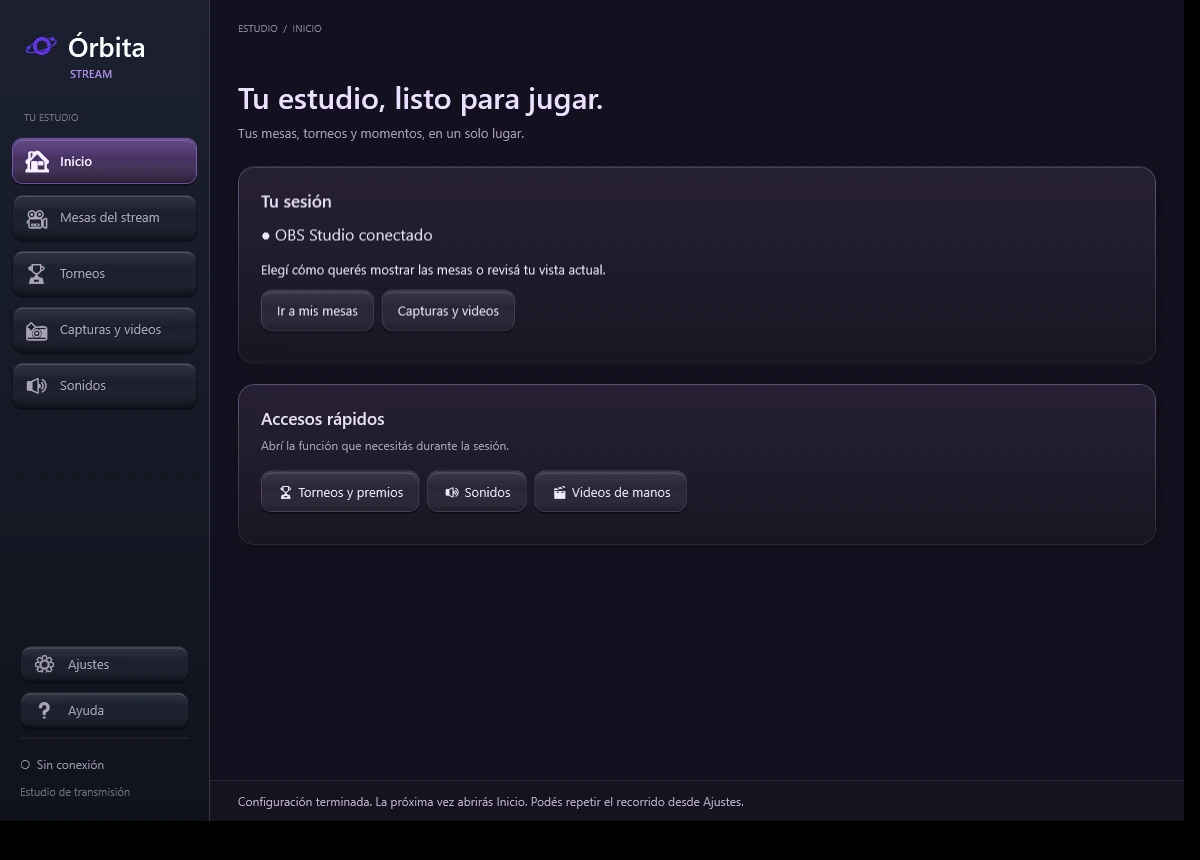
The menu brings together Home, tables of the stream, Tournaments, Captures and videos and Sounds. Settings and Help are at the bottom. Connection, backgrounds and mosaic are located within the tables of the stream; moment marks are within Captures & Videos.
In a new profile, the path opens to connect OBS or Streamlabs, choose tables and check the output. Save the progress and allow Continue later. In Settings → Guided Setup you can configure it again without deleting credentials, tournaments, license or the saved tile.
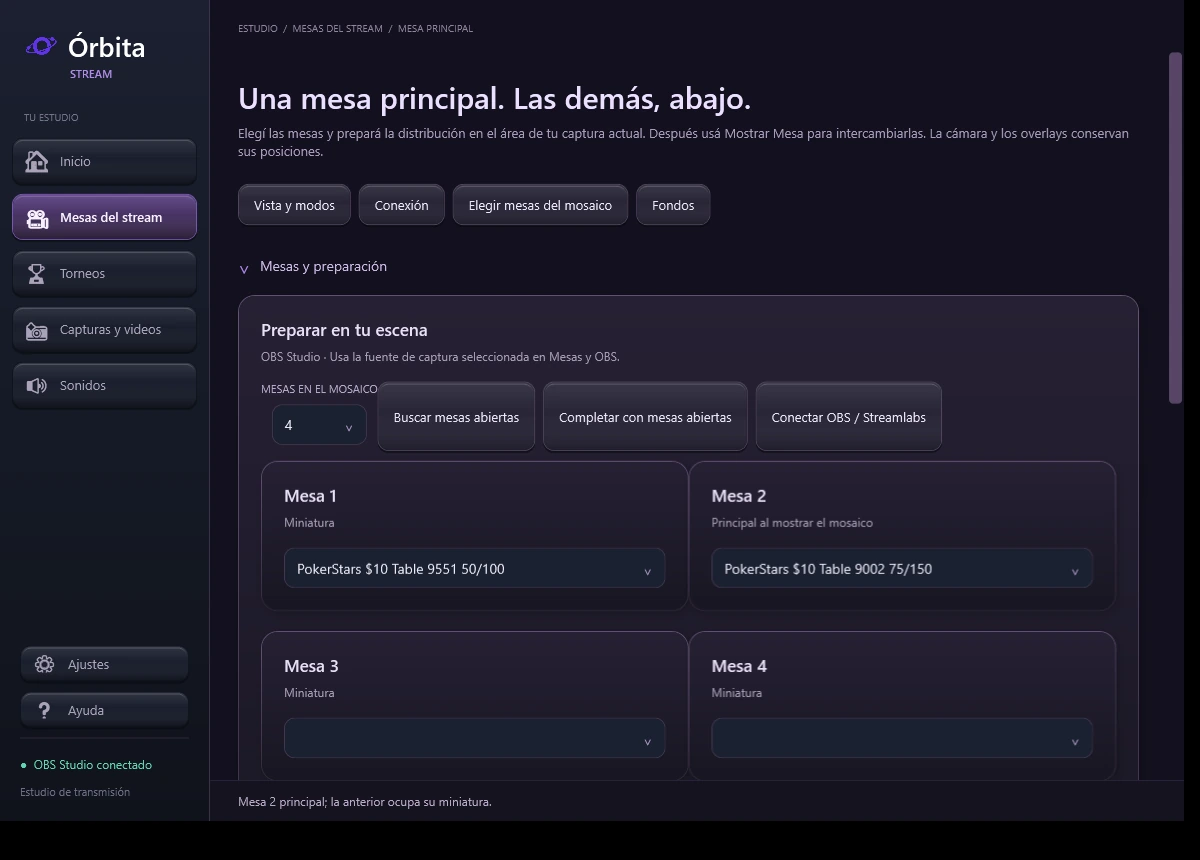
Choose tables, main and thumbnails
In tables from the stream → Choose tables from the mosaic, use Search tables open and choose the windows. Filling with open tables keeps the chosen ones that are still open and fills the free places with different tables. Review the selection before applying it.
Apply and Show Thumbnails maps the windows to existing snapshots and displays the mosaic without having to select each snapshot in OBS. Preserves positions, sizes, crops and order of main and thumbnails. Prepare/Refresh is used for first preparation or recreating snapshots - it's inside Create/Redo Layout and can rearrange the layout.
Choose between two and six tables. Main large and thumbnails highlights an table and keeps the others below; for three and five tables this design is used. Applying tables without moving snapshots changes the associated windows while preserving the geometry of a prepared tile. Create or remake layout allows you to modify sizes and area. Showing one of the tile's tables makes it primary; Returning to individual table restores the individual capture. Check the result before going on air.
Save a hand on video
I chose the previous seconds and reaction time to save a hand. In OBS, apply the duration and start or check the repeat buffer. Save this hand waits for the configured reaction and saves the file confirmed by OBS. The buffer needs to accumulate the previous seconds before saving a full hand. It does not stop streaming or recording.
Changing the duration may reset the buffer and discard its previous contents. Prepare it before the hand you want to save. Streamlabs allows you to import manually saved videos, but not automatically save replays from the program.
In Captures and videos you can filter images and videos, search for files, play videos, add notes and tags and mark their review. Importing videos preserves the original and creates a copy in the library. Recover Videos searches for saved files that do not already appear in it. Multiple selection asks for confirmation before deleting files.
Connect OBS or Streamlabs
- In tables of the stream → Connection, choose OBS Studio or Streamlabs Desktop.
- In OBS, enable the WebSocket server from Tools → WebSocket Server Settings. Use the configured port—4455 by default—and its password.
- In Streamlabs, enable remote control and use the local token and port —59650 by default—. The token is not the transmission key.
- Choose a dedicated “Window Capture” source and select the table. “Show table” changes that capture without changing the scene.
- Check the output before transmitting. In Streamlabs Studio Mode, manually check what is being aired.
Save important moments
During an active broadcast, use “Mark Moment” or Ctrl + Alt + M. Marks keep times and notes; They do not generate videos or cuts.
Add notes and export the list. The initial anticipation is 60 seconds. You can correct the lag by section while preserving the original time. After a reconnection, check the synchronization with the saved video.
Prepare the staging
Choose one of the eight designs with transparency, save the PNG and add it as an Image source in OBS or Streamlabs. Adjust the table, camera and grid sources to their openings, preserving the proportions.
Soundboard
The keypad includes 56 audios, with its own library and configuration. Go to "Sounds", search for an audio and use the button or its shortcut.
- General and sound volume, optional simultaneous play and “Stop All”.
- Name, color and shortcut editing; audio replacement and multiple import of MP3 and WAV up to 20 MB.
- Button order, deletion and undo last deletion.
- If another application occupies a shortcut, use the button or change the combination from Edit.
Sounds come out of the default Windows device. To include them in the stream, capture Desktop Audio or add Órbita Stream as a per-app audio source. Use a single route to avoid echo. The WebSocket connection does not transmit audio. Check it first with a short recording.
Tournament grid
Enter “Tournament Grid”. Add tournaments manually or paste/upload a screenshot of the grid. Check the recognized names, times and buy-ins before importing; OCR can be wrong. If the image does not contain a schedule, fill it in when you know it.
Update the status of each tournament and upload its payments and bounties. Use the view for OBS or Streamlabs to display the summary and grid using the corresponding Navigator feed. Before going on air, check that the lines and amounts match your session.
Final table prizes
- In Tournament Grid, open “final table · prizes for the stream”.
- Paste or upload the prize capture, or enter them manually. Check the amounts and complete the tournament name.
- In a regular tournament, deactivate the bounties. In a KO you can indicate rewards with amounts or text.
- Activate “Show final table in stream toggle” and save.
- Update “Still in play” when players are eliminated. The eliminated positions are dimmed and the guaranteed prize is highlighted.
Toggle shows summary → grid → final table. The final table remains for 10 seconds. In View for OBS you can view it directly, edit it or resume toggling.
The announced prizes do not modify the collections, the net or the statistics. When you start another session, the previous final table is no longer displayed until you save it for the new session.
If the Browser feed was already open during an update, connect OBS or Streamlabs and press “Refresh view in OBS” to reload the HTML.
Captures and study notes
Save a screenshot from the table controls and open “Captures” to review it. You can search for images, add notes and tags, and mark your review. Captures and their log are saved locally in the Stream data.
A capture saves an image; “Moments” records a time reference to find the stretch in your recording. Brands do not generate a video file. To save a hand using OBS, use the video feature described in this guide.
Consult the manual from Stream
In the left menu, press “User Manual”. This guide opens in your browser, at orbitapoker.com. You need the Internet to consult the online edition; the program's local functions do not require keeping this page open.
Installation and update
Requires Windows and .NET Desktop Runtime 8. Close Stream before updating and run the latest installer. Keep a copy of your important data. The regular update preserves Stream's own configuration and library. It is installed separately from the original Órbita and saves its own data.
Download Órbita Stream for Windows ↓